PCjs Machines
Home of the original IBM PC emulator for browsers.
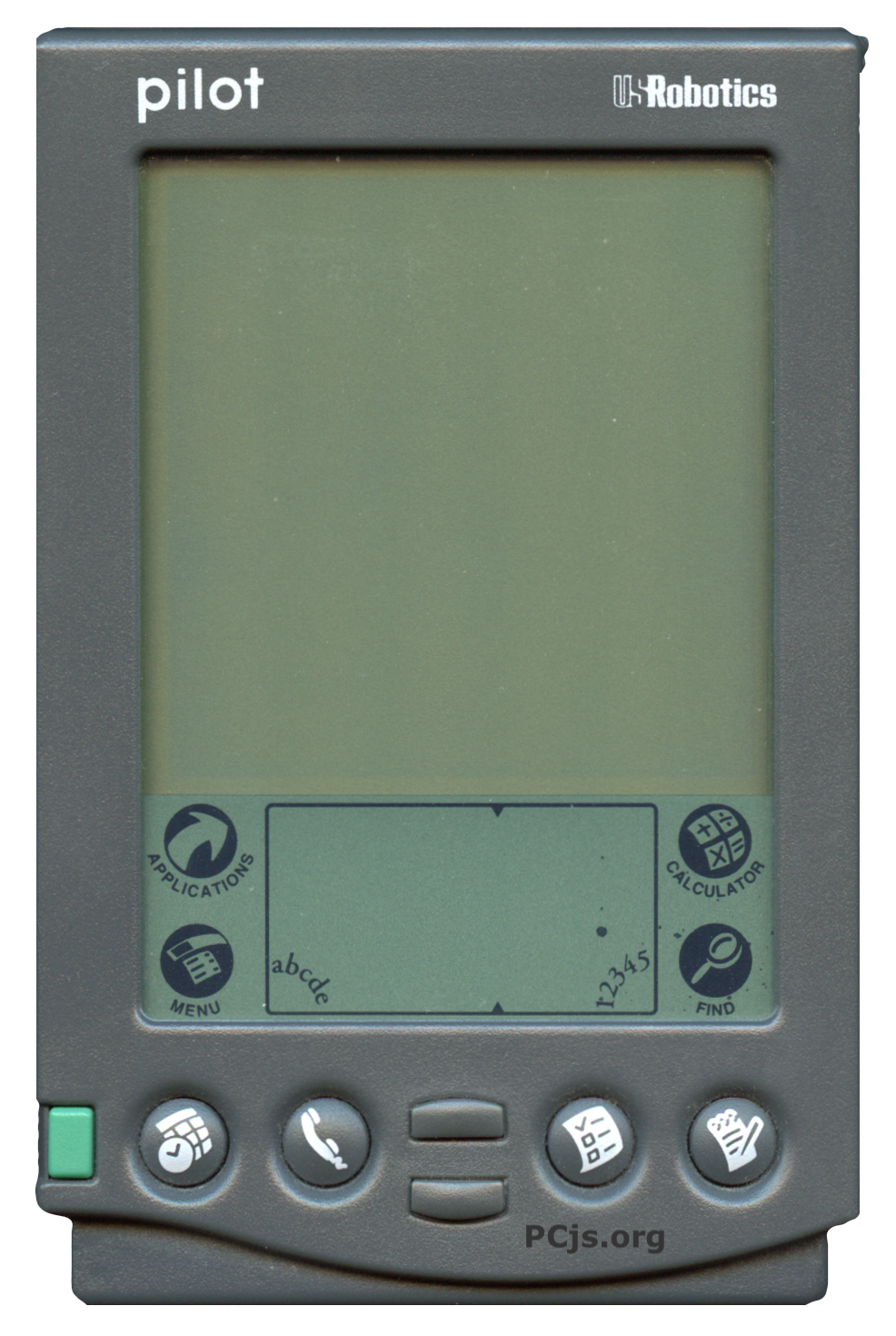
Palm Pilot (1995)
This PCjs machine emulates the original Palm Pilot, running the PalmOS 1.0 ROM. It’s a port of the PIMulator, a Java-based Palm Pilot emulator I wrote over 20 years ago.
The machine emulates the Motorola 68000 CPU and the MC68328 (“DragonBall”) hardware, including its interrupt controller, timers, LCD controller, and the digitizer and buttons attached to it.
Use your mouse (or finger) as the stylus: tap anywhere on the screen or the silk-screened area below it, including the Graffiti area, where you can write characters. The hardware buttons on the image can also be clicked. Hard-coded key mappings include:
- 0: Power
- 1: Date Book
- 2: Address Book
- 3: To Do List
- 4: Memo Pad
- Up/Down arrows: Scroll Up/Down
The first time the Pilot boots, it will ask you to calibrate the digitizer, by tapping the center of a few targets.
The state of the machine (including all your changes/progress) is automatically saved in your browser whenever you leave the page and restored when you return. Use the Pilot’s own Power button to put it to sleep and wake it up again; it will turn itself off after a period of inactivity (see the “Auto-off” setting in Prefs). Clicking the Reset button below the machine erases its memory (the equivalent of a “hard reset”), so any changes will be lost.
Demos
Click any of the following applications to install it on the Pilot and launch it. Like the original PIMulator, this “injects” a series of PalmOS API calls (DmCreateDatabaseFromImage, SysUIAppSwitch, etc) while the Pilot is idle, so make sure the Pilot is on and has been calibrated first. Once installed, an application remains on the Pilot (until the Pilot is reset), and it can be launched again using the Pilot’s Applications button.
- CODE5 by DoubleBit Software
- Daleks by IndiVideo (ReadMe)
- Invaders 1.0 by Scott Ludwig (ReadMe)
- PocketChess 1.1 by Scott Ludwig (ReadMe) (Demo)
For more applications, like Bejeweled, Railroad, and SFCave, which don’t run on PalmOS 1.0, try them on the Palm III instead.
You can also install applications using the Debugger’s load command (eg, load demos/Daleks.prc). The Debugger’s save command (eg, save pocketchess.json) saves the entire state of the machine to a file, which another page can use as the initial state of its machine, as the PocketChess page does.
Palm Pilot Emulation Notes
The PCjs Debugger is available by clicking the Debug button below the machine. Type ? for a list of commands. For example, h halts the machine, u un-assembles instructions, t steps through them, r displays the CPU registers, and g resumes execution. PalmOS system calls (eg, TRAP #15 followed by an API selector) are displayed by name.
Like PIMulator, the CPU masks all addresses to 25 bits, so the ROM, which PalmOS addresses at 0x10C00000, appears at 0x00C00000 in the Debugger, and the DragonBall hardware registers, which PalmOS addresses at 0xFFFFF000, appear at 0x01FFF000.
Resources
- Darrin Massena’s Pilot Software Development